1. Image
Upload a portrait or choose an image from your HypeUGC avatar library.

HypeUGC AI Twin Studio
The HypeUGC AI twin generator turns a portrait or HypeUGC avatar into a talking MP4 using your script, chosen voice, and presentation style.
Avatar Upload
Upload your AI avatar image
Script Creation
Generate your AI twin script
Voice Selection
Choose your AI voice
Generation
Create your AI Twin video
Upload a new image or select from your AI-generated avatars
Drop your avatar image here
or click to select from your computer
• Supported formats: JPG, PNG, GIF
• Max file size: 10MB
• Choose portrait (9:16) or landscape (16:9) crop
Talking-avatar workflow
An AI twin in HypeUGC is a talking video created from a portrait or avatar image and an audio track. The audio can come from a script read by a selected voice, your own voice sample, or an uploaded narration. The image supplies the visible person; the audio supplies the timing and speech; the video model creates the animated result.
Upload a portrait or choose an image from your HypeUGC avatar library.
Add a script and voice, clone your voice, or upload a finished narration.
Generate an MP4 video and review speech, identity, framing, and visual continuity.
Condensed procedure
Need every screen explained? Follow the AI Twin creation tutorial, then return to this generator with your image, script, voice, and fal.ai key ready.
Source image
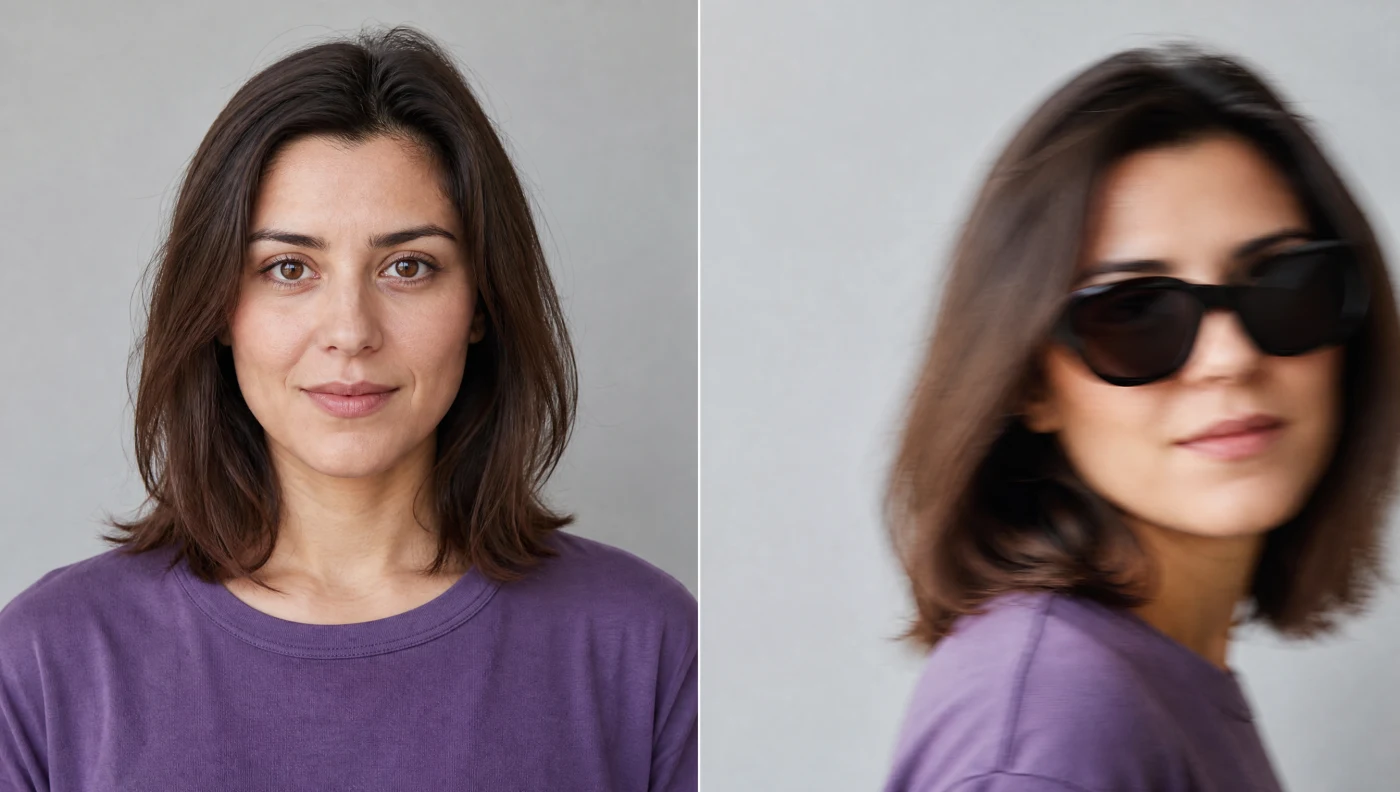
A clear source gives the video model more usable information about the face and framing. HypeUGC accepts a new upload or an avatar already saved in your image library.
Speech input
| Path | Current input | Use it when |
|---|---|---|
| Script and built-in voice | Up to 2,000 script characters and a selected HypeUGC voice | You want to produce the narration inside the workflow. |
| Voice sample | Audio sample up to 15 MB for the available cloning path | You want a closer vocal identity based on your own sample. |
| Uploaded narration | MP3, WAV, M4A, OGG, or AAC audio | You already edited and approved the final voiceover. |
Pre-generation check
| Item | Current behavior | Review before generating |
|---|---|---|
| Frame | Portrait 9:16 or landscape 16:9 crop | Keep the full face and important hand or product details inside the crop. |
| Audio | Generated voiceover or uploaded narration | Listen for pronunciation, pacing, silence, and unwanted background audio. |
| Motion prompt | Optional instruction for the video model | Use a focused instruction and avoid asking for motion that conflicts with the image. |
| Provider access | Personal fal.ai API key and sufficient provider balance required | Connect and validate the key in Settings before the final step. |
| Download | Completed video downloads as MP4 | Review the full video before publishing or adding captions. |
Practical outputs
Turn an approved message into a repeatable talking-head format without a new shoot.
Pair a clear spokesperson image with narration that explains one feature or use case.
Create vertical social drafts for hooks, offers, education, or campaign variations.
HypeUGC also supplies a library of stock avatars that users can use without separate avatar licensing. A stock avatar is useful for a ready-made character; an AI twin is the workflow that combines an image with your chosen script and voice to produce a new talking video.
Genuine HypeUGC workflow sample from the product media library.
Genuine HypeUGC workflow sample showing a different stock character.
Genuine HypeUGC workflow sample for comparing presentation styles.
Finish the video
After exporting your AI twin, use the Free AI Caption Generator to generate captions and burn them into the finished video. The caption tool is completely free and requires no signup.
Free creator and provider usage
HypeUGC does not charge a recurring fee to use the AI Twin Studio. You can first make the source avatar with the 50+ free AI avatar image allowance, or upload or select an existing avatar, then prepare the twin workflow. Starting the final video request requires a signed-in HypeUGC account, your own fal.ai API key, and enough provider balance. fal.ai bills that video-model usage to the account behind your key.
“Unlimited AI Twin generation” means HypeUGC does not add a recurring monthly generation quota when you use your own key. It does not mean the fal.ai request is free or that provider balance, rate, model, and policy limits do not apply. A failed request may also have provider-specific billing behavior, so check the current fal.ai usage record.
Related concepts
| Capability | What it represents | Primary output | Next action |
|---|---|---|---|
| AI avatar | The visible person or character | Static image | Create or choose the image that will appear in the video. |
| Voice clone | A vocal likeness created from a sample | Audio track | Review consent, pronunciation, pacing, and sample quality. |
| AI twin | The combined talking-video workflow | Animated MP4 video | Combine the approved image and audio, then review the result. |
Quality checks
| If you see | Try this first | Why it can help |
|---|---|---|
| Unnatural mouth movement | Use a sharper, front-facing image and a clean audio track. | It gives the model clearer face geometry and speech timing. |
| Identity changes | Reduce motion requests and use a source with stronger facial detail. | Large pose changes can require the model to invent missing visual information. |
| Wrong pronunciation | Edit spelling for pronunciation or upload approved narration. | The final animation follows the generated or uploaded audio. |
| Subject cropped too tightly | Return to the image step and leave more space around the face and shoulders. | The selected 9:16 or 16:9 frame controls what remains visible. |
| Generation error | Check login, key validation, fal.ai balance, input URLs, and policy message. | The interface reports different actions for access, balance, input, and policy failures. |
Responsible generation
Use only faces, voices, scripts, products, and brand assets you own or have permission to use. Do not impersonate a real person, fabricate an endorsement, or conceal a synthetic identity where disclosure is required. A connected fal.ai key is used to authorize the provider request, so keep it private and manage it through HypeUGC Settings. Review the current privacy policy and terms and conditions before publishing.
Questions before generating
In HypeUGC, it is a talking video generated from a person or avatar image and an audio track created from a script, voice, or uploaded narration.
Prepare an avatar image, script or narration, chosen voice path, HypeUGC account, personal fal.ai API key, and sufficient fal.ai balance.
Yes. The workflow accepts a single uploaded or saved avatar image. Clear face detail and suitable framing give the model better source information.
Yes. The current workflow includes a voice-sample path in addition to its built-in voices and uploaded-narration option.
Yes. The interface accepts MP3, WAV, M4A, OGG, and AAC audio up to 15 MB.
The current upload guidance lists JPG, PNG, and GIF with a 10 MB maximum file size.
The finished duration follows the approved audio and the limits of the selected voice and provider workflow. The interface notes a 40-second audio limit for some natural voices, so verify the selected path before generating.
Yes. HypeUGC does not charge a recurring fee to use the AI Twin Studio, and you can make its source avatar with the 50+ free AI avatar image allowance. The final video request uses your fal.ai key and is billed by fal.ai according to the active model and usage.
The own-key workflow does not add a recurring HypeUGC generation subscription. fal.ai usage charges and provider limits still apply.
An AI avatar is the static image. An AI twin combines the image with speech and animation to create a talking video.
Prepare a clear avatar, approved speech, and your fal.ai key. Review the full output for identity, pronunciation, visual continuity, and disclosure before publishing.